
In this article, we are going to show the best possible ways to record WhatsApp voice and video calls on your Android and iOS devices.
WhatsApp Messenger is one of the most popular applications not just for messaging but for voice calling and video calling. The platform is becoming a one-stop for all needs. Whether you want to send a message to your friends, call them or video chat with them, WhatsApp allows all these features. However, what it does not allow is to record voice calls or video calls. But you need to not worry as there are different workarounds and third-party apps for that. In this article, we are going to show the best possible ways to record WhatsApp voice and video calls on your Android and iOS devices. So, without wasting your time, let’s get started.
Also Read: Update WhatsApp New Version: How to Update WhatsApp to the Latest Version on Andriod, iPhone, Desktop and More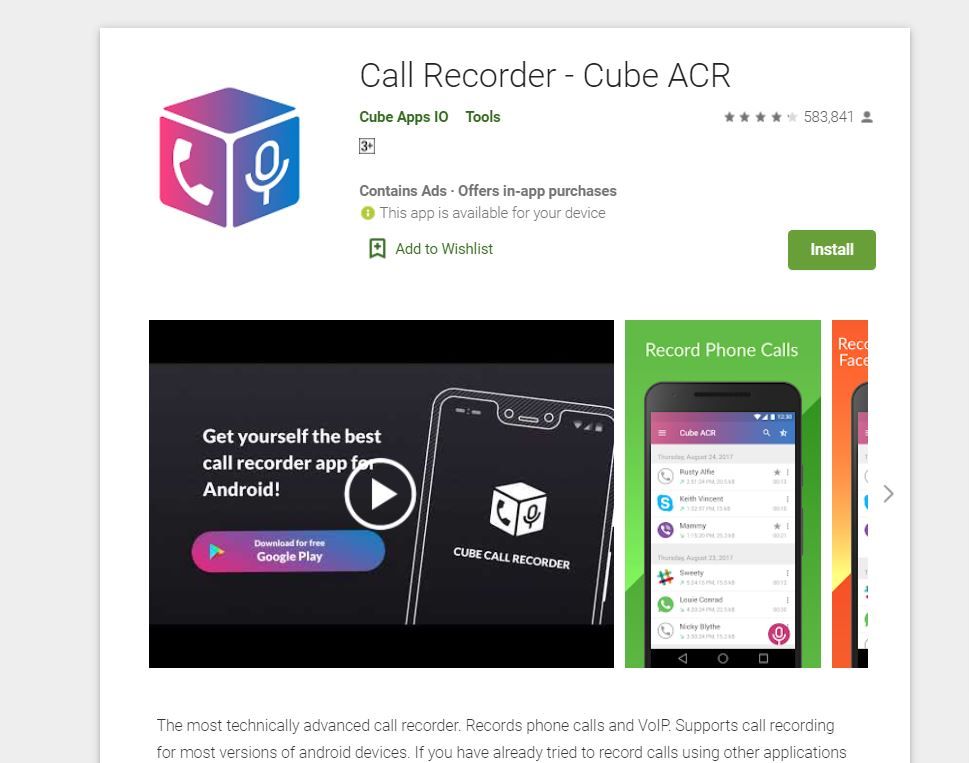
Recording WhatsApp voice calls is fairly easy on Android. There is this application known as Call Recorder: Cube ACR, which allows you to record calls. However, it is important to note that the app does not support all phones. So, suggest you go to their support page first to find out if your phone is compatible with the app. You can click on this link to check out whether your phone supports this app or not. If your phone is in the list, you can follow these steps to record WhatsApp voice calls on your Android smartphone:
Also Read: WhatsApp Pay: How to Add Bank Account, Set UPI PIN, Send Money to Contacts, Find Offers and More
Recording a WhatsApp voice call on the iPhone is a tricky job. There is no particular application that allows you to record WhatsApp voice calls with ease. However, there is a workaround, which requires a Mac and an iPhone. Here’s how you can do it:
Also Read: WhatsApp Reactions: How to Use WhatsApp Reactions on Android, iOS, and WhatsApp Web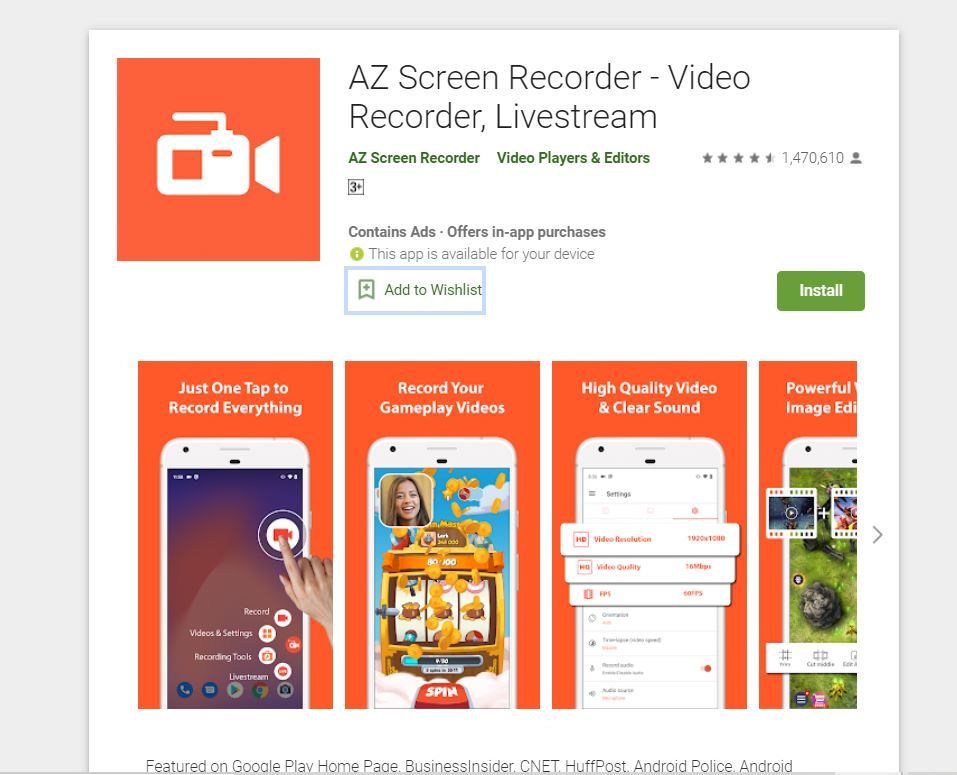
Although there is no official feature to record WhatsApp video calls on your Android smartphone, there is always a workaround. If you want to record a WhatsApp video call, you can simply use the screen recorder application on your Android smartphone. Although there are a plethora of applications available on the Google Play Store that allows you to record WhatsApp video calls. One such app is the AZ screen recorder app. The application allows you to record WhatsApp video calls with audio. Here’s how you can record it:
Once the call starts, tap the record button present in the AZ Screen Recorder widget. Once you are done, simply stop the recording and your WhatsApp video call will be saved in the application.
Also Read: Delete WhatsApp Group: How to Delete WhatsApp Group on Phone, Web, and Desktop
With iOS 11, Apple introduced the built-in screen recorder feature, which is quite helpful, to be honest. With this feature, you can also record WhatsApp video calls on your iPhone without much hassle. This also means that you don’t require any third-party apps to record WhatsApp video calls on the iPhone. Here’s how you can this feature:
Yes, WhatsApp calls are safe as they are protected with end-to-end encryption. This simply means that all the photos, videos, messages, documents, and calls are secured and can be only been checked by the sender and receiver.
No, WhatsApp does allow you to automatically record any video or voice calls and neither it comes with any such functions. In order to record the calls automatically, you need to use third-party applications.
Thanks for reading till the end of this article. For more such informative and exclusive tech content, like our Facebook page
OnePlus Nord CE 2 5G vs OnePlus Nord CE 2 Lite 5G
OnePlus 10 Pro vs OnePlus 10T
OnePlus Nord 2 vs OnePlus Nord 2T
Xiaomi Redmi Note 11 Pro vs Xiaomi Redmi Note 11 Pro Plus 5G
OnePlus 10R vs OnePlus Nord 2T
OnePlus Nord 2T vs OnePlus Nord CE 2 5G
OnePlus 10T vs OnePlus 10R
Samsung Galaxy M52 5G vs Samsung Galaxy M53 5G
OnePlus Nord 2 vs OnePlus Nord CE 2 5G
OPPO Reno8 vs OnePlus Nord 2T